IBO Player IPTV: The Complete Setup & Features Guide
What Is IBO Player IPTV?
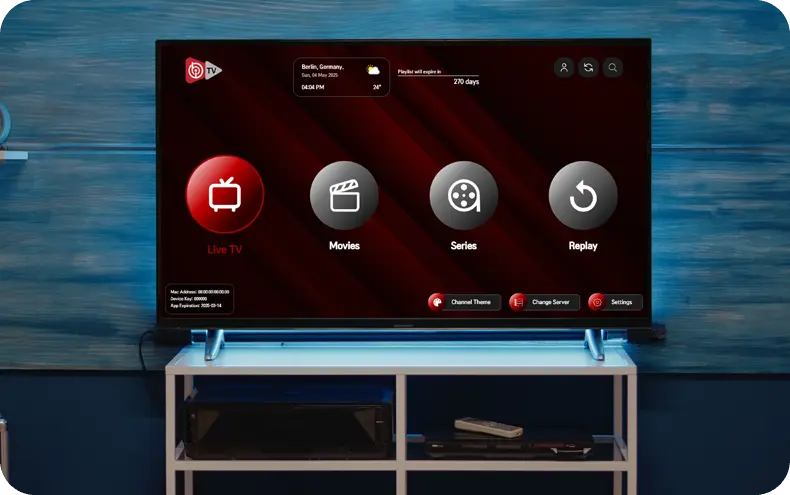
IBO Player IPTV refers to the combination of the IBO Player Pro application and an IPTV subscription loaded into it — together they turn any supported device into a full streaming box capable of playing live channels, movies, and series over the internet instead of through a traditional cable or satellite box. The app itself is free to download and install; what determines the actual viewing experience is the subscription (playlist) connected to it, which supplies the channel list, video-on-demand library, and program guide data the app displays.
This distinction trips up a lot of first-time users. People sometimes assume “IBO Player IPTV” is a single product with fixed content, when in reality the app is closer to a media player shell, and the subscription behind it is what actually defines quality, channel count, and reliability.
Want a working demo before installing anything?
Request a Free Trial on WhatsAppInstalling IBO Player IPTV Step by Step
The installation process is broadly similar across devices, with small differences depending on the platform:
- Download the app. On Android and Fire TV devices, IBO Player Pro is typically installed via the Google Play Store, Amazon Appstore, or a direct APK depending on the device. On iOS, it’s available through the App Store. Enigma2 and MAG boxes use their own plugin or firmware-based installation methods.
- Open the app and locate the activation or playlist screen. Most versions ask for either an activation code (for the app itself) or playlist login details (server URL, username, and password, or a direct M3U link).
- Enter your subscription details. These are provided by your IPTV provider after purchase, usually delivered within minutes via WhatsApp or email.
- Wait for the channel list to populate. This typically takes anywhere from a few seconds to a couple of minutes depending on the size of the playlist and your connection speed.
- Browse and start watching. Once loaded, content is organized into categories — Live TV, Movies, Series, and often a Favorites or Recently Watched section.
Understanding App Activation vs. Playlist Subscription
One area that regularly confuses new users is the difference between activating the IBO Player Pro app itself and subscribing to a playlist. App activation simply unlocks the software for a set period — commonly offered as a 1-year or lifetime license — and has nothing to do with what channels or content you can watch. The playlist subscription is the separate service that actually supplies the live channels, movies, and series. In practice, most providers sell these as two distinct products, and you generally need both: an activated copy of the app, and an active playlist loaded into it.
Core Features of the IBO Player IPTV Experience
- Multi-screen layout: A grid-based interface designed for both remote-control navigation on TVs and touch navigation on mobile devices.
- EPG (Electronic Program Guide): A built-in schedule showing what’s currently airing and what’s coming up next on each live channel.
- Favorites and categories: The ability to organize channels into custom groups for faster access.
- Multi-format support: Compatibility with M3U playlists and Xtream Codes-style logins, covering most IPTV provider formats.
- Catch-up / replay: On supported playlists, the ability to rewind a live broadcast you’ve missed.
- Multiple device profiles: Many subscriptions allow activation across more than one device, depending on the plan.
Live TV Channels Through IBO Player IPTV
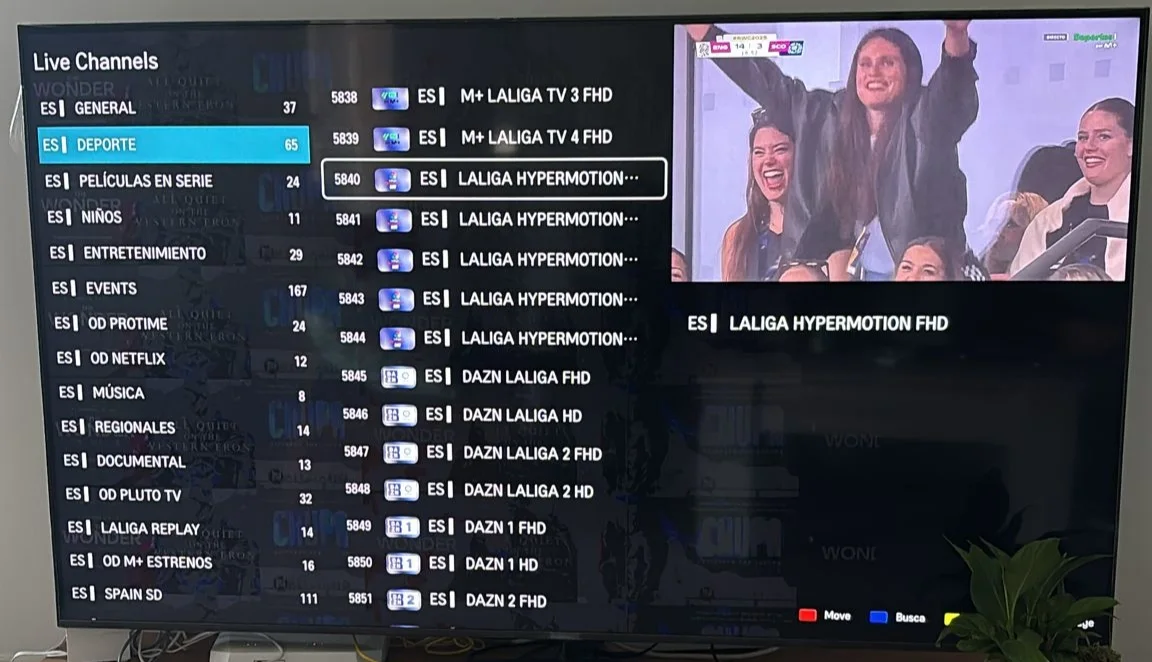
The live TV side of an IBO Player IPTV setup typically spans a broad mix of categories: international news, entertainment, documentaries, kids’ programming, regional channels, and sports. Quality varies significantly between playlist providers, so it’s worth checking whether channels are grouped logically, whether logos and EPG data load correctly, and whether the stream quality options (SD, HD, FHD, 4K, and increasingly 8K on premium tiers) are clearly labeled rather than mixed together randomly.
Movies and Series Library
The video-on-demand side works similarly to a standard streaming service interface, with posters, descriptions, and often trailers or previews. A well-maintained IBO Player IPTV subscription refreshes its movie catalog within a day or two of new theatrical or streaming releases, and keeps full seasons of ongoing series available rather than just the first few episodes. Search functionality inside the app makes it easy to jump straight to a specific title rather than scrolling through categories manually.
Device Compatibility Overview
| Device | Install Method | Notes |
|---|---|---|
| Smart TV (Samsung, LG, Sony) | App store or sideload | Best for a dedicated living-room setup |
| Android phone / tablet / box | Play Store or APK | Most flexible option overall |
| iPhone / iPad | App Store | Requires iOS 13 or newer |
| Fire TV Stick | Amazon Appstore or sideload | Compact and portable |
| MAG Box | Firmware / portal setup | Common in dedicated IPTV boxes |
| Enigma2 (Zgemma, Vu+, Dreambox) | Plugin installation | Popular with satellite-box users |
| Windows / Mac | Desktop app or VLC/Kodi | Good for testing before buying hardware |
Internet Requirements for a Smooth Experience
Because IBO Player IPTV streams everything over the internet rather than a dedicated broadcast signal, connection quality directly affects picture quality and stability. As a rough guide, 10 Mbps is generally enough for stable HD viewing, 25 Mbps is recommended for 4K, and 50 Mbps or more is preferable for 8K content, particularly in households with multiple devices streaming at once. A wired Ethernet connection to your main streaming device tends to reduce buffering compared to relying solely on Wi-Fi.
Not sure which device setup fits you best?
Ask Us on WhatsAppCommon Setup Problems and How to Fix Them
- Blank channel list after login: Usually caused by an incorrect server URL, username, or password — double-check the details exactly as they were sent to you.
- App won’t open or crashes on launch: Often resolved by clearing the app’s cache or reinstalling the latest version.
- Channels load but freeze quickly: Typically a connection issue rather than an app issue — test your internet speed and consider switching to a wired connection.
- Missing EPG data: Some playlists take a few hours after activation to fully populate program guide information — this usually resolves on its own.
- Activation code not accepted: Confirm there are no extra spaces when entering the code, and that it hasn’t already been used on another device if your plan is single-device only.
IBO Player IPTV Pricing Structure
Pricing for IBO Player IPTV setups is generally split into two parts: the app activation itself (often a 1-year or lifetime option) and the playlist subscription (typically billed monthly, quarterly, semi-annually, or annually). Longer subscription terms almost always work out cheaper per month, which makes sense for anyone planning to use the service long-term, while a short monthly plan is a reasonable way to evaluate a specific provider before committing further.
Is a VPN Necessary?
With a properly configured and reliable IPTV provider, a VPN is not required for normal use. Some users choose to run one anyway for general privacy reasons unrelated to streaming, but it isn’t a functional requirement of the IBO Player IPTV setup itself, and adding one unnecessarily can sometimes reduce connection speed rather than improve reliability.
Getting the Most Out of Your Subscription
A few small habits noticeably improve the day-to-day experience. Organizing frequently watched channels into a Favorites list saves time compared to scrolling through large categories every session. Keeping the app updated to its latest version avoids compatibility issues as playlist formats evolve. And testing a new provider with a short free trial before committing to a longer plan remains the single most reliable way to confirm channel stability, VOD freshness, and device compatibility on your specific setup, rather than relying purely on advertised numbers.
IBO Player IPTV vs. Traditional Cable and Satellite
The appeal of switching to an IBO Player IPTV setup usually comes down to a handful of practical differences compared to traditional TV. Cable and satellite packages are tied to fixed regional channel bundles, often require a technician visit for installation, and typically lock you into a contract with hardware rental fees. An IPTV setup running through IBO Player Pro, by contrast, works on hardware you likely already own, doesn’t require a dish or cable line, and can be adjusted or cancelled far more easily since it’s a software-based subscription rather than a physical installation.
Content breadth is another factor. A single IPTV subscription can realistically include tens of thousands of channels spanning multiple countries and languages, something no single cable package offers without stacking several regional add-ons at extra cost. The tradeoff is that IPTV quality depends entirely on your internet connection and the reliability of your specific provider, whereas cable and satellite deliver a dedicated signal that isn’t affected by home Wi-Fi congestion. For most households with a reasonably stable internet connection, the flexibility and channel breadth outweigh that tradeoff, but it’s worth being aware of before switching over completely.
Multi-Language and Regional Content Support
One underrated strength of a well-built IBO Player IPTV playlist is regional flexibility. Rather than being locked to a single country’s channel lineup, a broad subscription typically groups content by region and language, letting you access German, French, Spanish, Arabic, English, and many other language channels from the same interface.
This matters especially for multilingual households, expats keeping up with news and entertainment from their home country, or anyone who simply wants broader international sports and news coverage than a domestic package would normally include. When comparing providers, it’s worth checking whether their regional categories are actually well organized rather than dumped into a single unsorted “International” folder.
Account Security and Safe Usage Habits
Since IBO Player IPTV subscriptions are tied to login credentials rather than physical hardware, a few basic habits help keep an account running smoothly and securely. Avoid sharing your playlist login publicly or reselling access beyond what your plan permits, since most subscriptions cap the number of simultaneous connections and exceeding that limit can cause account issues or automatic logouts.
Keep the credentials your provider sends you somewhere safe rather than in an easily lost note, since re-issuing lost details can add delay if you need to reinstall on a new device. And if you ever notice unexpected buffering or channels dropping that weren’t happening before, checking with support early is usually faster to resolve than waiting, since it could indicate a shared-connection limit being exceeded rather than a broader service issue.
Choosing the Right Plan Length
Plan length is one of the more overlooked decisions in setting up IBO Player IPTV, and it’s worth matching it to how confident you already are in a specific provider. A first-time user with no prior experience with a given provider generally benefits from starting on a monthly plan or free trial, purely to confirm stability and content quality on their own setup before committing further.
Once a provider has proven reliable over a month or two, moving to a 6- or 12-month plan typically brings a noticeably lower cost per month, which makes sense for a household that has already confirmed the service fits their needs. Jumping straight to a long-term plan with an unfamiliar provider is the riskier approach, since it removes the ability to course-correct quickly if the service doesn’t perform as expected.
What to Expect From Customer Support
Support quality is one of the clearest indicators of a well-run IBO Player IPTV provider, and it’s worth testing this before you subscribe rather than after something breaks. Reputable providers typically offer WhatsApp-based support with response times measured in minutes rather than days, since fast turnaround matters most exactly when something isn’t working and you want to actually use the service. A quick pre-sale question — about device compatibility, trial availability, or channel coverage in your region — is a reasonable, low-risk way to gauge how a provider will treat you once you’re already a paying customer.
M3U Playlists vs. Xtream Codes: What’s the Difference?
IBO Player IPTV subscriptions are typically delivered in one of two formats, and understanding the difference helps when troubleshooting or switching devices. An M3U playlist is a single link containing the full channel and content list, which you paste directly into the app’s playlist field — it’s simple and works broadly across most IPTV players, though updates to the list sometimes require re-adding the link.
Xtream Codes logins, by contrast, use a server URL plus a username and password, which the app uses to pull a live, automatically updating list each time you open it. Most modern providers, including those built for IBO Player Pro, offer Xtream Codes-style logins by default since they tend to stay current without any manual re-entry, while still supporting M3U for compatibility with other apps or devices.
Sports Streaming: A Special Consideration
If live sports are a primary reason for setting up IBO Player IPTV, it’s worth treating this as its own evaluation category separate from general channel count. Sports streams place unusually heavy demand on server infrastructure during major fixtures, when huge numbers of viewers are watching the same event simultaneously — this is exactly when weaker providers tend to buffer or drop. A dependable setup should hold up during marquee matches without noticeably degrading, and providers that specifically mention load-balanced or anti-freeze server infrastructure are generally better positioned to handle that kind of peak demand than smaller, budget operations.
Setting Up for Kids and Family Viewing
Households with children often get particular value out of an IBO Player IPTV setup thanks to dedicated kids’ categories that group age-appropriate cartoons and shows separately from general entertainment. Creating a Favorites list of approved kids’ channels, or setting up a separate profile on devices that support it, makes it easier to hand a remote to a child without worrying about them browsing into unrelated content. It’s also worth checking, when comparing providers, whether their kids’ category is genuinely curated and regularly updated rather than a thin afterthought tacked onto a larger channel list.
Final Thoughts
IBO Player IPTV works best when you treat the app and the subscription as two separate decisions: pick a device-compatible, actively maintained app version, and pair it with a playlist provider that keeps its channel list, VOD library, and EPG data properly updated. Getting both parts right is what separates a smooth, reliable streaming setup from one that constantly needs troubleshooting.
Ready to get started?
Get Your Free 24-Hour TrialFrequently Asked Questions
Do I need to pay for both the app and the playlist?
Generally yes — app activation unlocks the software itself, while the playlist subscription supplies the actual channels, movies, and series.
Which devices support IBO Player IPTV?
Smart TVs, Android phones and boxes, iOS devices, Fire TV Stick, MAG boxes, Enigma2 devices, and Windows/Mac computers are all supported.
Why is my channel list empty after logging in?
This is almost always caused by an incorrect server URL, username, or password — re-check the exact details provided by your subscription.
How many devices can I use with one subscription?
This depends on your specific plan — check with your provider for the exact number of simultaneous connections included.
Is a VPN required to use IBO Player IPTV?
No, a VPN is not required with a properly configured, reliable provider.
Can I try it before subscribing long-term?
Yes — a short free trial is the best way to confirm stability and content quality on your own device before committing to a longer plan.